THE SHORT ANSWER
Connect your phone and computer to the same network. Turn on the WebSocket server in OBS, then scan its QR code with DeckPilot.
What you need before you start
Your stream still runs on your computer. DeckPilot lets you control it from your Android phone or tablet, so you can move around the room while keeping your scenes and sound within reach.
- OBS on your computer. Use OBS Studio 28 or newer. Open the scenes you want to use and keep the computer awake.
- DeckPilot on your phone. Download it using the Google Play button on this page. You can follow these same steps on an Android tablet.
- Both devices on the same network. Connect your phone to Wi-Fi. Your computer can use that Wi-Fi or a cable connected to the same router. Avoid guest Wi-Fi—it often stops devices from connecting to each other.
1. Enable the OBS WebSocket server
WebSocket is the connection that lets DeckPilot talk to OBS. It’s already included in OBS Studio 28 and newer; you just need to turn it on.
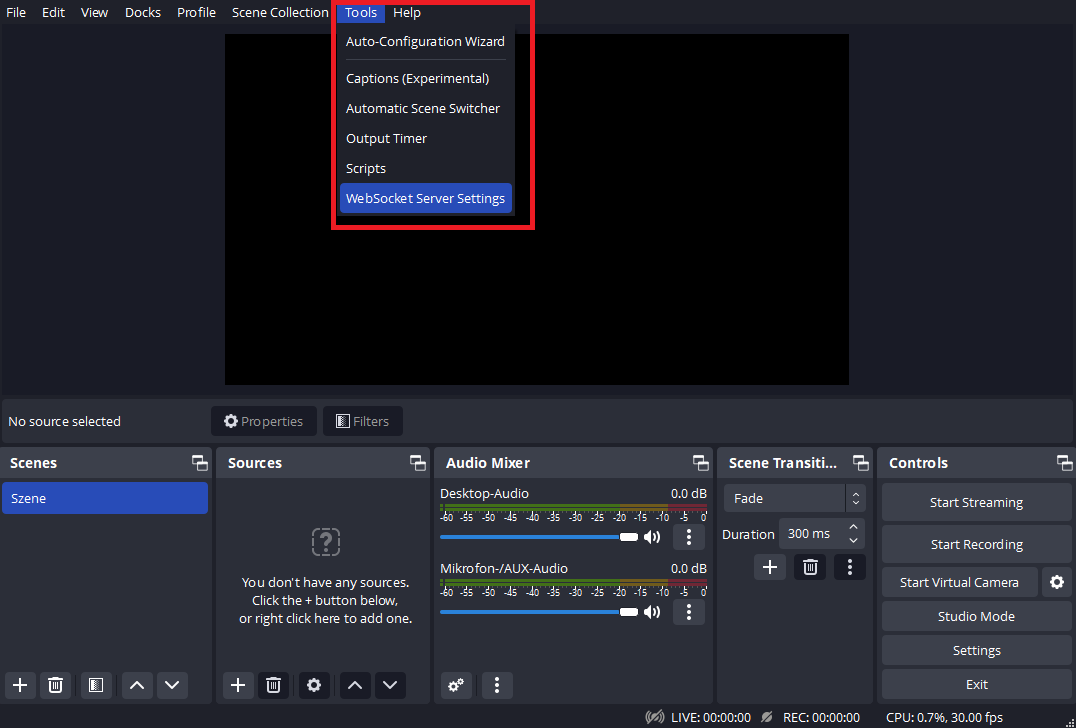
- In OBS on your computer, open Tools → WebSocket Server Settings.
- Tick Enable WebSocket server. Leave Enable Authentication checked—this makes DeckPilot ask for a password before it can control OBS. Use a strong password you don’t use elsewhere.
- Check Server Port. It’s usually 4455. If yours is different, you’ll need that number when connecting.
- Apply your changes, then click Show Connect Info. You’ll see your computer’s connection details and a QR code.
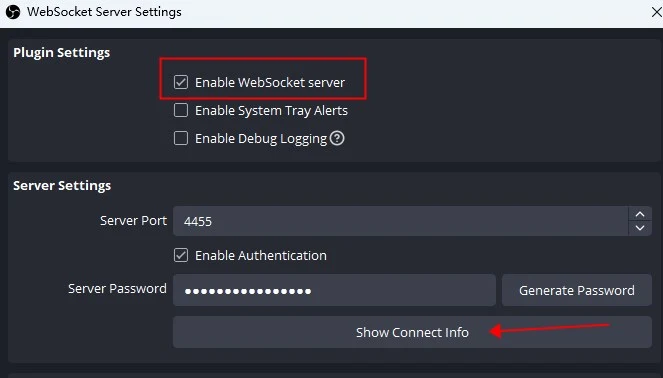
Use the password shown here, not your Wi-Fi password or stream key. Keep this window and its QR code private. Someone with those details may be able to control your OBS.
2. Connect DeckPilot with the QR code
- Open DeckPilot and tap Connect to OBS. Select QR Code, then Scan QR Code.
- If the app shows the setup guide first, follow it and tap Continue to scan. Allow camera access when your phone asks.
- Point your phone at the QR code in your own OBS Show Connect Info window. Use the code on your computer, not one from a tutorial.
- If DeckPilot asks you to confirm, tap Connect to OBS. Once you see Connected to OBS, tap Start controlling.
The QR code saves you typing the address and password. Your phone still needs to be on the same network as your computer. If the code scans but won’t connect, check the Wi-Fi and the settings above.
Can’t scan the code? Enter the details yourself
Go to Connect to OBS and tap Enter IP address. If you’re on the scanner screen, tap Use another method first. Older versions of DeckPilot may call this Manual Setup.
- Host: Copy your computer’s IP address from Show Connect Info in OBS. This tells DeckPilot which computer to connect to. Don’t copy an address from a tutorial.
- Port: Copy the Server Port from OBS. It’s usually 4455.
- Password: Type the WebSocket password exactly as it appears in OBS, including capital letters. Check for any extra spaces.
Tap Test connection to check the details, then Connect to OBS. For this Wi-Fi setup, don’t enter localhost or 127.0.0.1. On your phone, those addresses mean the phone itself, not your computer.
3. Check your scenes and audio
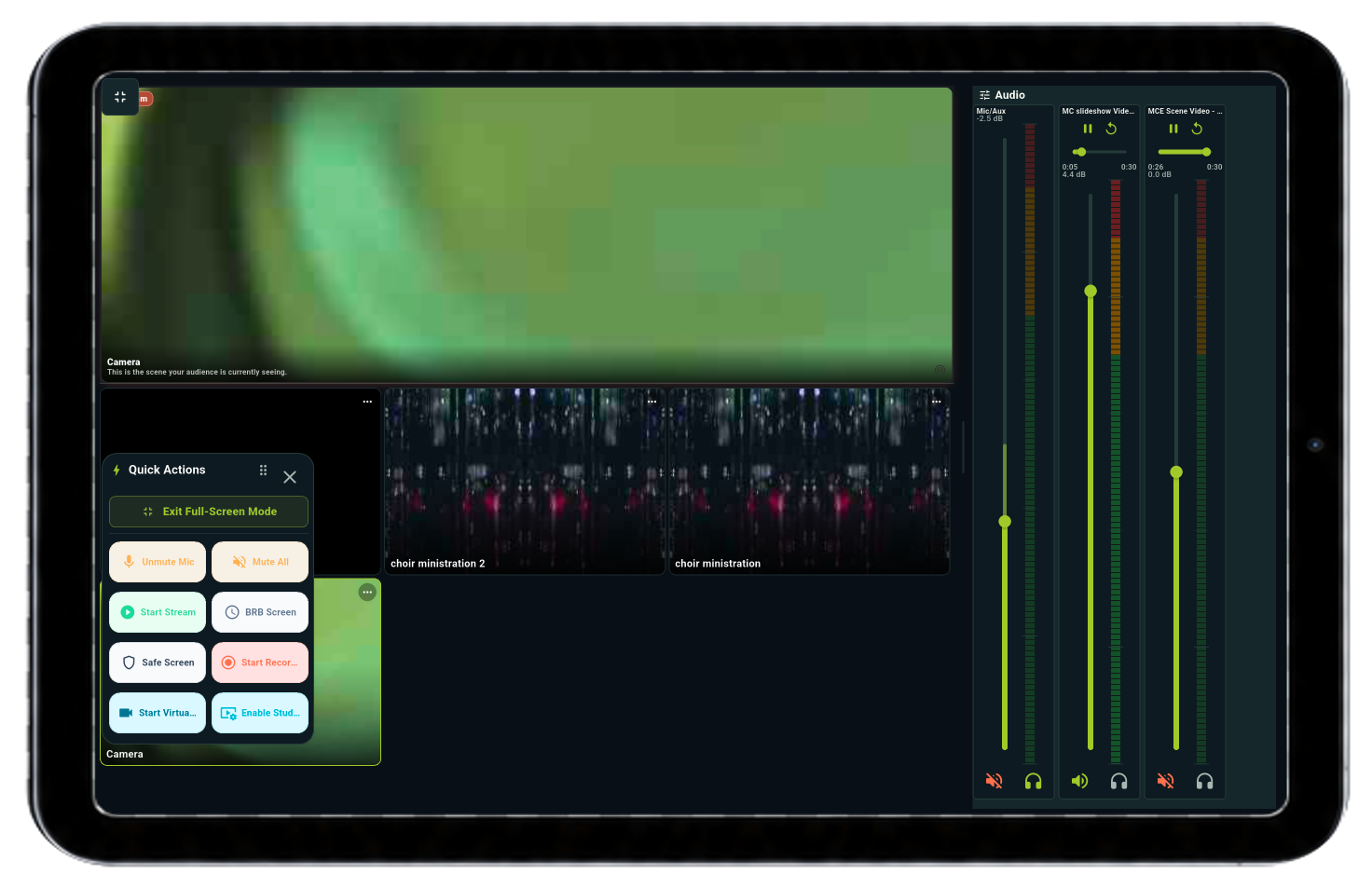
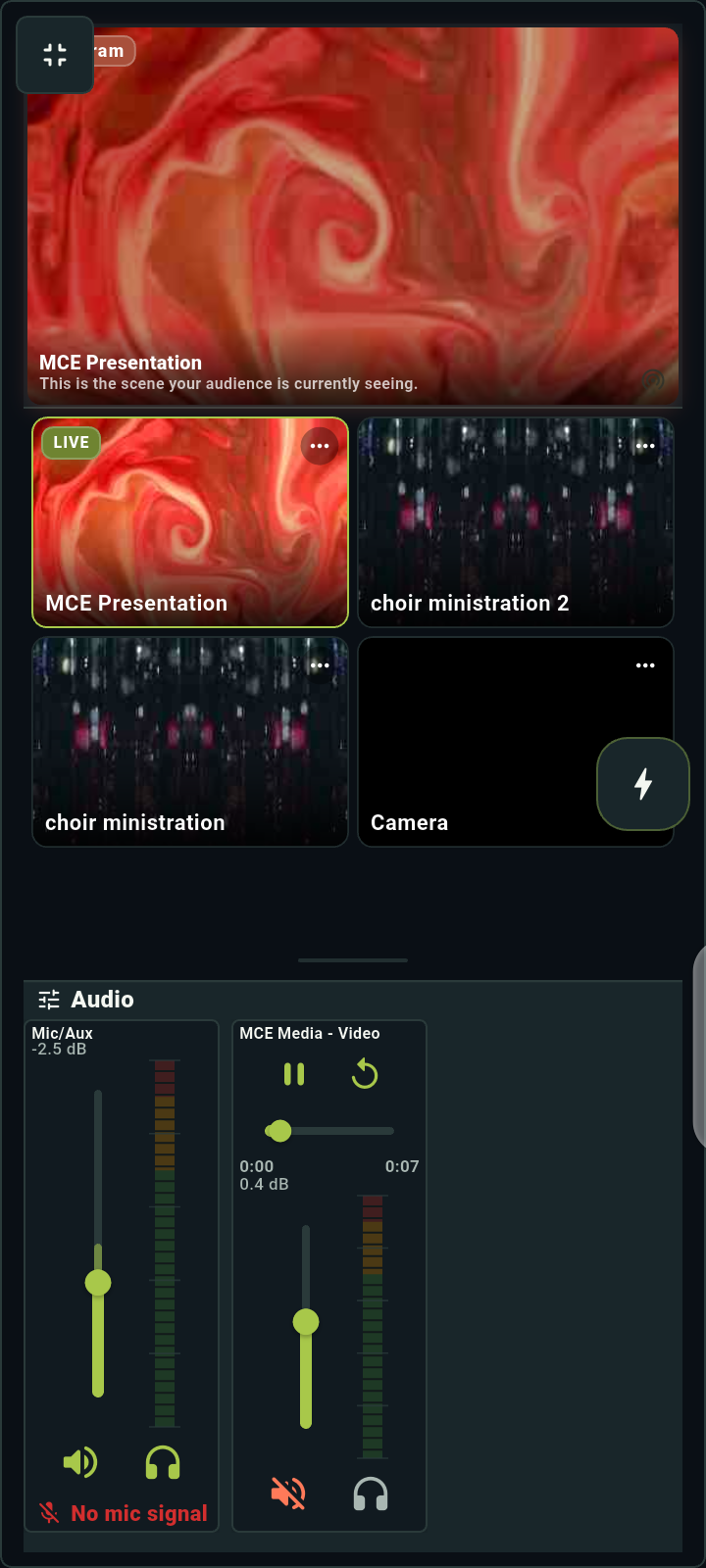
On Home, you should see the same scenes you have open in OBS. Tap the full-screen icon for a larger view of your scenes and controls.
- Before you’re live, tap a test scene on your phone and watch OBS on the computer. Check Program—that’s the picture your audience will see.
- Using Studio Mode? Preview lets you prepare the next scene. It isn’t live until you use the transition control to move it into Program.
- Tap Audio at the bottom of the app, or use the audio panel in full-screen mode. Move one volume slider a little and check that the matching slider moves in OBS.
- Put the volume back where you want it and choose your opening scene. Check the picture and sound before you tap Start Stream or start recording.
If your first connection does not work
- Password rejected? Check the WebSocket password in OBS, or scan the current QR code again.
- Nothing found, or a timeout? Make sure OBS is open, the WebSocket server is on and both devices are on the same network. Check that the computer’s address hasn’t changed.
- Connected, but the wrong scenes? Check that you’ve connected to the right computer. Open the scene collection you want in OBS, then refresh DeckPilot.
If something looks different in your app or you’re stuck on a step, contact DeckPilot support. Tell us what you’re seeing and we’ll help you find the next step.
DeckPilot works with OBS Studio. It isn’t made by the OBS Project.