THE SHORT ANSWER
Make sure OBS is open, its WebSocket server is on, and your phone and computer are on the same network. Then check the address, port and password.
Start with these four checks
- Is OBS open and the computer awake? DeckPilot can’t connect if OBS is closed or the computer is asleep.
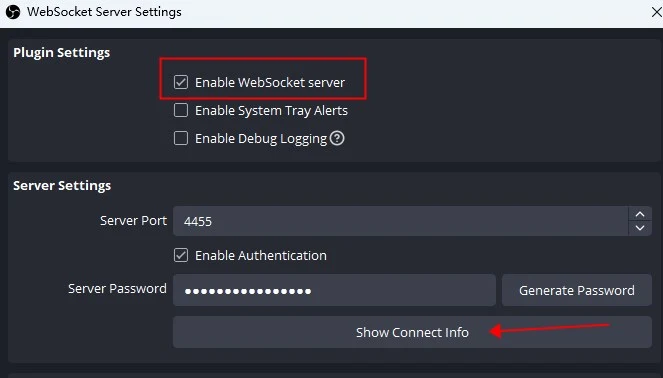
- In Tools → WebSocket Server Settings, is Enable WebSocket server checked? Use OBS Studio 28 or newer for built-in WebSocket support.
- Are your phone and computer on the same network? Switch your phone from mobile data to Wi-Fi. Guest Wi-Fi may block the connection.
- Do Host, Port and Password match Show Connect Info in OBS? If you’ve changed the password or moved to another network, scan the current QR code again.
“Authentication failed” or a rejected password
This usually means DeckPilot found a server, but the password wasn’t accepted. Start by checking that you’re connecting to the right computer with its current OBS password.
- On the computer you want to control, open WebSocket Server Settings in OBS, then Show Connect Info.
- In DeckPilot, re-scan that QR code or update the Password field with the current WebSocket password. Do not use the Wi-Fi password or stream key.
- Try again. If you changed the password in OBS, update it on any other phones or tablets you use to control that computer too.
“Host could not be found” or the wrong address
Host is the address of the computer running OBS. It isn’t your phone’s address, your router’s address or your website. If you entered a computer name and it isn’t working, try the numbered IP address shown in OBS under Show Connect Info.
- Did you enter localhost or 127.0.0.1? On a phone, these mean the phone itself. For Wi-Fi, use the OBS computer’s address instead. DeckPilot’s USB connection works differently and isn’t covered here.
- Was the address saved earlier? Your computer can get a new address when you change networks or your router reconnects. Check the address in OBS now and update the one saved in DeckPilot.
- Does your computer show more than one address? Choose the one for the network your phone is using. A VPN or a second network connection may show a different address. If you’re unsure, ask whoever manages the network.
“Connection refused”
DeckPilot couldn’t open a connection at the address and port you entered. The server may be switched off, the port number may be wrong, or the computer’s firewall may be blocking it. Check these in order.
- Confirm that OBS is running and Enable WebSocket server is checked.
- Check Server Port in OBS and enter the same number in DeckPilot. It’s usually 4455, but use the number your own OBS shows.
- If you followed an old tutorial, check whether it asked you to install a WebSocket plugin. OBS Studio 28 and newer already include the server; use its own WebSocket Server Settings.
- If those settings are right, check that the computer’s firewall allows OBS connections on your trusted network. Ask your IT team for help if needed. Don’t turn off the whole firewall.
A timeout, or “Find OBS” finds nothing
A timeout means DeckPilot waited for a connection but didn’t get one in time. If Find OBS comes back empty, try Enter IP address and copy your computer’s current address from OBS. The app can sometimes connect this way even when it can’t find the computer automatically.
- Are you on guest Wi-Fi? Some networks let each device use the internet but stop them from talking to each other. Ask the venue’s IT team which network to use for OBS. Don’t change their router settings yourself.
- Is a VPN running? A VPN can block connections to nearby devices. If you’re allowed to, try disconnecting it before a rehearsal and connect again. On a work network, ask your IT team first.
- Could the firewall be blocking OBS? Check that OBS is allowed to receive connections on the network you’re using. Keep the firewall on; only change the OBS rule if it needs fixing.
- Is the Wi-Fi signal weak? Try connecting near the router. If it works there but drops at the back of the room, check the Wi-Fi coverage before changing the password again.
It connects, but something still isn’t right
- The scenes don’t match. Check that you’re connected to the right computer. Open the scene collection you want in OBS, then refresh DeckPilot.
- The connection keeps dropping. Check that the computer isn’t going to sleep and the phone isn’t switching away from Wi-Fi. Try it from the spot where you’ll actually use it during the show.
- It disconnects when the phone locks. Check your phone’s battery settings for DeckPilot. The phone may be stopping the app in the background. Change only the setting you need, and check how it affects battery life.
- I tapped a scene, but the picture hasn’t changed. In Studio Mode, check Preview and Program. You may have selected the next scene in Preview without using the transition control to take it live.
- The stream has no sound. Check that the right microphone or audio source is selected and isn’t muted in OBS. Listen to the stream itself—a moving volume meter doesn’t prove your viewers can hear it.
Still not connecting?
Send us a message and tell us where you got stuck. These details will help us work out what’s happening without asking you to start over.
- Copy the error message exactly as it appears. Include your phone model and the versions of OBS and DeckPilot you’re using.
- Tell us whether you scanned the QR code or entered the address yourself. Mention guest Wi-Fi, a network cable or a VPN if you use one.
- Tell us what you’ve already tried. You can include a screenshot, but hide passwords, Connect Info QR codes and stream keys before sending it.
If something looks different in your app or you’re stuck on a step, contact DeckPilot support. Tell us what you’re seeing and we’ll help you find the next step.
DeckPilot works with OBS Studio. It isn’t made by the OBS Project.